
Most M-Pesa tutorials start in the middle. They assume you already hold a Paybill or Till number and jump straight to code. But there are two halves to going live: Safaricom has to issue your business a shortcode, and Daraja has to let your software talk to it. Skip the first half and you end up stuck at the Go Live form, waiting on paperwork you never knew existed.
This guide covers the whole road: choosing between a Till and a Paybill, applying for it, building your integration in the Daraja sandbox, passing the Go Live review, and swapping into production — with the official links you need at every stage.
The road map
Four milestones, in order:
1. Shortcode    Apply for a Paybill or Till with Safaricom Business
2. Sandbox      Register on Daraja, build against test credentials
3. Go Live      Submit the Go Live form, pass verification, get production keys
4. Production   Swap credentials, run first live transactions, monitor
Each milestone gates the next: the Go Live form asks for your live shortcode, and production credentials are issued against that shortcode alone. So start at milestone one, even if your code is already finished.

Step 1 — Choose your collection tool: Till or Paybill
Safaricom's Lipa Na M-PESA line-up gives you three main options for collecting money:
- Paybill — a cash collection service for organizations that collect regularly. Customers initiate the payment: they enter your Paybill number plus an account number that identifies what the payment is for. Built for rent, school fees, loan repayments, subscriptions, utility bills
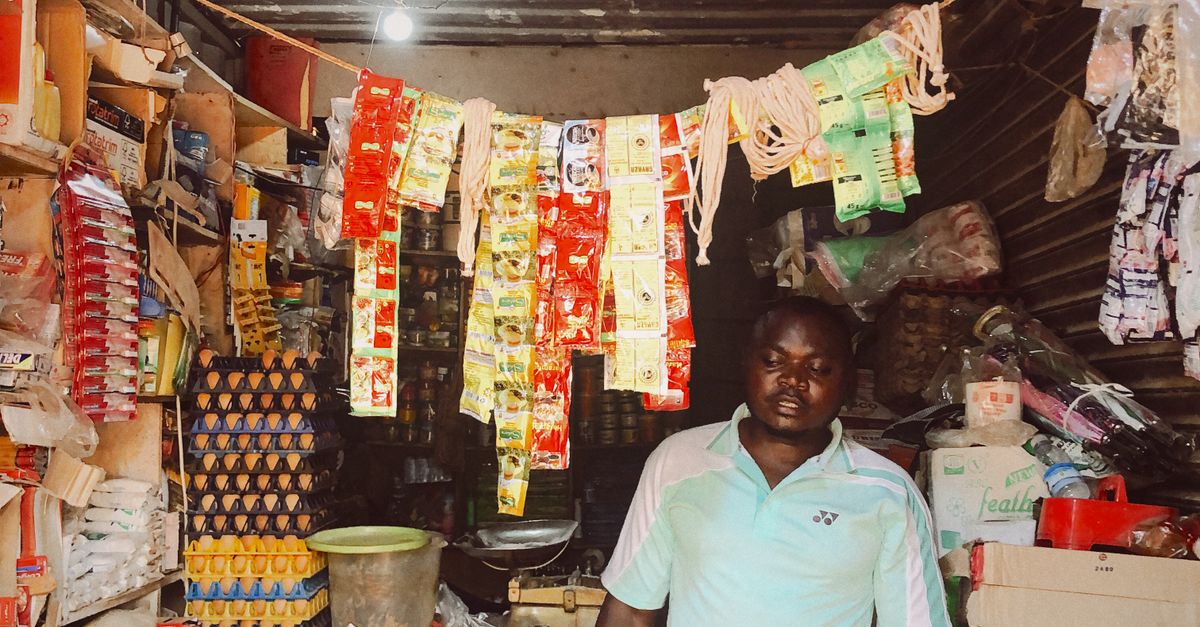
- Till (Buy Goods) — point-of-sale collection. Customers enter just the till number, no account number. Built for shops, hotels, market stalls, and anywhere the payment is simply "my bill". One till per outlet, with a head office number and store number to manage multiple locations
- Short-Term Paybill — a fundraising paybill valid for up to six months, for medical bills, funerals, weddings, education drives, and charity appeals. It can support personal projects without full business registration, though Safaricom asks for project authenticity documents
The fee models differ, and that is usually what decides it. On a Business Till, paying a Buy Goods till costs the recipient 0.25%, capped at KES 200 per transaction — the merchant absorbs the fee, customers pay nothing. On a Paybill, charges follow the Paybill tariff Safaricom publishes, and customers typically pay from their side. Businesses running both a shop and recurring collections commonly hold one Paybill plus a till per location.
For the API work ahead, note this early: STK Push works with both shortcodes, but the C2B URLs you register differ between Paybill and Till, and Daraja approves each API per shortcode. Pick the tool that matches how your customers actually pay, not just the cheaper tariff.
Step 2 — Apply for your shortcode
The application now runs through Safaricom's self-service portal, the M-PESA Business Hub. The old route — collecting paper forms and queueing at a Safaricom shop — still works, but the portal is the fast one: Paybill applications are processed within 24 hours of a successful submission, and till applications follow the same flow.
Create your account and apply
- Go to hub.m-pesaforbusiness.co.ke and click Create Account — first name, last name, email address, and phone number. Safaricom emails you a registration link to set your password
- Log in and click Apply for a Paybill or Till
- Pick the product — Business Till, Paybill, or Short-Term Paybill
- Pick your business type: Individual, Sole Proprietorship, or LLC/Private Company. The document list scales with this choice:
- Individual: national ID (front and back), KRA PIN, and a cancelled cheque or bank letter confirming your bank details
- Sole Proprietorship: the above plus your business permit
- LLC / Private Company: directors' IDs or passports, KRA certificates for the company and Kenyan directors, a valid CR12 (issued within the last 90 days), certificate of incorporation, a recent annual-returns receipt, a cancelled cheque or company bank letter, and a stamped board resolution
- Upload the documents and submit. Track progress under My Applications — only the original applicant can see it, using the phone number from the application
Each status means exactly what it says: Pending (submitted, awaiting the Lipa Na M-PESA team), Rejected (reasons shown — fix and resubmit), Approved (documents reviewed, shortcode being processed), Complete (the shortcode is active and can receive payments).

Activate and take ownership
Once the shortcode arrives by SMS:
- Till: dial *234*2# from the nominated number, enter your store number, and accept the terms. You receive an operator ID and a start key; dial *234*2# again, open Account Services, and change the PIN. The M-PESA Business App (Android, iOS) walks through the same activation with ID validation
- Paybill: dial *234*4# from the nominated number to check the balance and withdraw to bank. Funds can only settle to the bank account you gave during the application
- Stickers: download your Lipa Na M-PESA artwork from My Applications once the application is complete
Two details worth knowing before you build anything: a Business Till's transaction limits sit at KES 150,000 per transaction and KES 300,000 daily, and the till SIM that receives payment notifications cannot transact. Your admin login to the Business Hub doubles as the merchant account Daraja cross-checks in Step 5 — existing M-PESA Business Portal users are migrated automatically.
Step 3 — Register on Daraja and build in the sandbox
With a live shortcode in hand, move to the developer side. Daraja is Safaricom's open API platform, and developer.safaricom.co.ke is where both halves of your integration live:
- Register an account on the portal with your name, email, and phone number
- Create an app: give it a name and select the APIs you plan to use — M-Pesa Express (STK Push), C2B, B2C, Transaction Status, Account Balance. The portal issues a sandbox Consumer Key and Consumer Secret per app
- Grab the sandbox test credentials: the portal's test-credentials screen lists the sandbox shortcode — 174379 — and the test phone numbers that simulate customer payments without moving money
Build against https://sandbox.safaricom.co.ke with those keys. The STK Push flow is one call plus one callback: you send amount, phone, shortcode, passkey and account reference; Safaricom pushes the PIN prompt to the test phone; the result lands on your callback URL.
Two requirements your callback endpoint must meet before the Go Live form will serve you well: it has to be publicly reachable over HTTPS on port 443 — not localhost, not port 8080 — and it has to answer HTTP 200 with valid JSON whether the transaction succeeded, failed, or timed out. Safaricom retries unacknowledged callbacks, but a broken callback URL is the number one cause of "my integration passed sandbox but production payments never confirm".

We have full code walkthroughs for this stage: initiating STK Push from React, the Node.js server-side flow with signed webhooks, a Django integration built for scale, and a booking system wired to M-Pesa. Or skip raw Daraja entirely with LipaWoo on WooCommerce.
Step 4 — The Go Live form
When the sandbox build handles every state — success, cancellation, timeout — you are ready for production approval. Log in at developer.safaricom.co.ke and open Go Live in the sidebar:
- Verification type: ShortCode. Enter the live Paybill or Till number from Step 2 — not 174379
- Organization details. The organization name must match your merchant records on the M-PESA Business Hub exactly, together with your M-PESA portal username. A mismatch here is the most common rejection
- OTP verification. A one-time code goes to the phone number and email registered against the shortcode. This proves the shortcode is yours
- Select your production APIs. Tick only what you need: STK Push, C2B, B2C, Account Balance, Transaction Status. Each selection is approved separately, per shortcode — and B2C and C2B cannot share a single production app, so plan for two apps if you both collect and disburse
- Collect your credentials. On approval, the production Consumer Key and Consumer Secret appear under My Apps. The production Passkey arrives by email. Save all three immediately — the passkey email is easy to miss
If your verification is rejected, the portal states the reason: fix it and resubmit the same form. Most rejections trace back to the organization-name mismatch or a shortcode that is not yet fully active on the Safaricom side.
Step 5 — The credential swap
Nothing from sandbox carries over. In your config, swap five values and nothing else:
| Setting | Sandbox | Production |
|---|---|---|
| Base URL | sandbox.safaricom.co.ke | api.safaricom.co.ke |
| Consumer Key / Secret | sandbox app | production app from My Apps |
| Passkey | sandbox passkey | passkey from the approval email |
| Shortcode | 174379 | your live Paybill / Till number |
| Callback URL | tunnel or test server | your HTTPS endpoint on port 443 |
Keep every value in environment variables so the swap is one .env change, not a code hunt. And run the OAuth flow first: request an access token with your production key and secret before any payment call — if the token call fails, the credentials are wrong and no amount of retrying STK Push will help.
Step 6 — First live transactions
Go live with intent, not hope:
- Send KES 1 to your own shortcode and watch the callback arrive. A real STK Push on your own phone proves the whole chain — shortcode, keys, passkey, callback URL — in one move
- Exercise the ugly paths deliberately: cancel a prompt, let one expire, pay a wrong account number. Confirm your code handles each terminal state the way the sandbox led you to expect
- Watch the Business Hub dashboard while you test: transactions, balances, and settlement should match what your own database recorded
- Verify settlement — withdraw to bank from the nominated line (
*234*4#for Paybill) and confirm the money lands in the account you registered in Step 2 - Only then, open the doors to customers
Keep the sandbox-to-production checklist beside you during this stage — it condenses Steps 4 to 6 into a printable pre-flight list.
When it goes wrong
- Go Live form rejected on organization name — the name you typed does not match your Business Hub record character for character. Pull the exact name from My Applications and resubmit
- No OTP arriving — the shortcode's registered phone number or email is out of date. Correct it with Safaricom support before retrying the form
- Production token call returns 401 — key and secret are wrong, or you are still calling the sandbox base URL. Check both against My Apps
- STK Push succeeds but no callback lands — your callback URL is not publicly reachable on HTTPS port 443, or it returns non-200. Fix the endpoint, then trigger a fresh payment
- Shortcode "not active" on Go Live — the application says Complete but Safaricom's side has not finished provisioning. Wait a day, or follow up via the Business Hub
- Anything else — the Daraja portal has a support channel, and Safaricom's business support answers at [email protected]
The official reference shelf
Every link this guide relies on, in one place:
| Resource | Where |
|---|---|
| Daraja portal — apps, sandbox keys, Go Live | developer.safaricom.co.ke |
| Daraja API documentation | developer.safaricom.co.ke/APIs |
| M-PESA Business Hub — applications, dashboard, statements | hub.m-pesaforbusiness.co.ke |
| Safaricom Paybill page — service detail and form downloads | safaricom.co.ke/business-paybill |
| Paybill tariff guide (PDF) | PAYBILL-STANDARD-TARIFF.pdf |
| M-PESA Business App — Android / iOS | bit.ly/lnm-app · bit.ly/LNM-app |
| M-PESA business support | [email protected] |
Where to go next
You now hold the full picture: shortcode from Safaricom Business, credentials from Daraja, production traffic through your own endpoint. The deep dives from here:
- The sandbox-to-production checklist — the condensed pre-flight list for launch day
- The complete M-Pesa integration guide — API setup to live transactions, end to end
- Accepting online payments in Kenya (2026 guide) — choosing your collection model as a small business
- FormPesa and LipaWoo — if you would rather collect M-Pesa without maintaining an integration at all
The shortcode is the business half. Daraja is the software half. Both in hand, you are live on Kenya's largest payment rail.