
Your sandbox app works. The test credentials work. What stands between you and the first real shilling is not code — it is two separate Safaricom processes that most tutorials blur into one: getting the business short code itself (the Till, Paybill or B2C number), and activating production APIs for that short code on Daraja.
This guide walks both halves in order: which number to apply for, where the application actually happens in 2026, every field on the Daraja Go Live form, what arrives in your inbox and when, and exactly who to contact when something stalls. The walkthrough screenshots are from our own go-live on an individual Buy Goods till — personal details and credential values blurred — and every official form, link and email address is collected at the end so you never have to hunt for them again.

The two halves of going live
Half one is business paperwork. Safaricom issues your short code through the M-PESA Business Hub (hub.m-pesaforbusiness.co.ke), and it belongs to the business owner, not the developer. Standard Till and Paybill applications are self-service online now — the hub advertises applying "instantly without paperwork." Other products still follow the older pattern you may have read about: a completed application form emailed to Safaricom with signed and stamped documents. The actual PDFs for that route are linked below.
Half two is the developer portal. Daraja (developer.safaricom.co.ke) links your app to that short code through the Go Live form, verifies you with an OTP, and converts your sandbox app into a production one.
| Short code application | Daraja Go Live | |
|---|---|---|
| Where | M-PESA Business Hub | developer.safaricom.co.ke |
| Who runs it | Business owner or merchant | You, the developer |
| What goes in | Business documents | Live short code, org name, M-PESA portal username |
| What comes out | Active Till / Paybill / B2C number | Production keys, endpoints, passkey |
| Official timeline | Paybill: 24 hours after successful submission | Often minutes — our Buy Goods run took about a minute; plan longer for B2C |
If you searched "Daraja go live" and found older tutorials telling you to write a signed request letter and email it to Safaricom — that route was real, and it still works as a fallback, but it is no longer the main road for a standard Till or Paybill. The self-service forms replaced it. The letter survives for B2C-heavy setups and for cases where the portal flow stalls; both are covered near the end.
Till or Paybill? Pick the right number before anything else
The product you apply for decides how customers pay you, which numbers you feed the API, and which APIs you can even use. The Business Hub lists the whole family:
| Product | What the customer does | What you get | Good for |
|---|---|---|---|
| Business Till (Buy Goods) | Pays a Till number, no account number | A Till number for display plus Store and Head Office numbers; collected funds are spendable from the till | Shops, restaurants, counter payments |
| Paybill | Pays a Paybill number plus an account number | A unique Paybill number with account references | Invoices, utilities, schools, subscriptions |
| Short-Term Paybill | Same as Paybill | Active up to six months, then closed | Fundraisers, medical bills, weddings, charities |
| B2C | Receives money | A bulk-payment short code | Salaries, refunds, disbursements |
| One Account | — | Paybill and B2C combined on one short code | Organizations collecting and paying out |
A Till business actually gets three numbers, and the hub's FAQ is precise about the difference: the Head Office number manages multiple stores, the Store Number operates one specific store, and the Till number is the one customers see. When you build API calls later, a Till integrates through its Store Number; a Paybill integrates through the Paybill number itself. Mixing these up is a classic go-live rejection.
Two numbers worth knowing before you commit: Business Till transactions cap at KES 150,000 per transaction and KES 300,000 per day, and a Buy Goods payment costs the receiving business 0.25%, capped at KES 200. Paybill tariffs come in separate bouquets, listed in the official tariff sheet linked at the end.
For STK Push (Lipa na M-Pesa Online), both a Paybill and a Till work. Choose based on how your customers should pay, not on API compatibility.
Step 1: Apply for the short code on the Business Hub
- Create an account at hub.m-pesaforbusiness.co.ke — first name, last name, email and phone number. A registration link arrives by email.
- Log in and click Apply for a Paybill or Till.
- Pick the product and your business category. The portal lists the exact documents each category requires — expect the business registration or incorporation certificate, KRA PIN and identification for directors, with the portal's own list being the authoritative one. Note that the categories run from Limited Liability Company all the way down to Individual — a self-employed person can hold a Buy Goods till in their own name, and the go-live screenshots later in this guide came from exactly that.
- Submit, then track everything under My Applications.
The application statuses are refreshingly honest: Pending means the Lipa na M-PESA team has it, Rejected arrives with the reasons stated, Approved means your documents cleared and the number is being processed, and Complete means the number is active and can receive payments.
Two constraints the FAQ states plainly: only the business owner, merchant or aggregator can apply for a Paybill (a Short-Term Paybill can be filed on behalf of a beneficiary), and Paybill applications are processed within 24 hours of a successful submission. B2C applications are also processed within 24 hours, on working days.
Once the status hits Complete, activate the number: for a Till, dial *234*2# from the nominated number or use the M-PESA Business App, then swap the start key for your own PIN; for a Paybill, the nominated number manages withdrawals and balances through *234*4#, and settlement only goes to the bank account you gave during the application.

Checkpoint: My Applications shows Complete, you hold the short code, and you know which of your numbers is customer-facing and which operates the account.
The email route: the forms that still get filled and mailed
For B2C, One Account and several other products, the paper form is still the official path — and the forms are public PDFs. The hub's own instructions: complete the application form, attach the documents from the Lipa na M-PESA requirements document, have everything signed and stamped by at least two directors or authorized signatories, and email it all to [email protected] or your account manager.
The M-PESA Bulk Payment Application Form (2025) covers B2C and One Account in one document. What it asks for:
- Company profile — name, physical and postal address, VAT and PIN numbers, type of business, years trading.
- Product choice — Bulk Payments (B2C) or Paybill plus Bulk Payments (One Account), together with the reason for disbursing funds and their source.
- Administrator details — the first user granted access to the M-PESA web portal, the one who creates all the other users. Fill this in deliberately: that username is exactly what you will type into the Daraja Go Live form later as the M-PESA Username/Operator ID.
- Bank account where collected funds settle, and two authorized signatories to sign the declaration.
The form itself carries the return instruction — Enterprise Business Unit, Safaricom House, emailed to [email protected]. One Account adds its own tariff form and authorization form, and the Lipa na M-PESA Terms and Conditions (2026) are what those signatures accept. A basic Till or Paybill needs none of this paperwork — the hub's self-service application replaced it — but every other product still walks this road.
Step 2: Finish the sandbox before you touch Go Live
Going live with an unfinished integration just puts broken code in front of paying customers. Before opening the form:
- Your Daraja app exists and the sandbox Consumer Key and Secret authenticate.
- STK Push succeeds in sandbox and your callback endpoint receives the result.
- The awkward paths are handled: customer cancel, timeout, duplicate callback.
- The callback URL is HTTPS on port 443, answers 200 with JSON on every outcome, and stays idempotent when Safaricom replays a callback.
The deep rules production actually enforces on callbacks — no redirects, bot-protection allowlists, replay-safe handlers — are written out in the sandbox-to-production checklist. Run that list against your deployment before the form, not after.
Step 3: Fill the Daraja Go Live form, field by field
Log in at developer.safaricom.co.ke and open Go Live in the sidebar. The form runs in two steps: organization information, then an OTP with product selection.
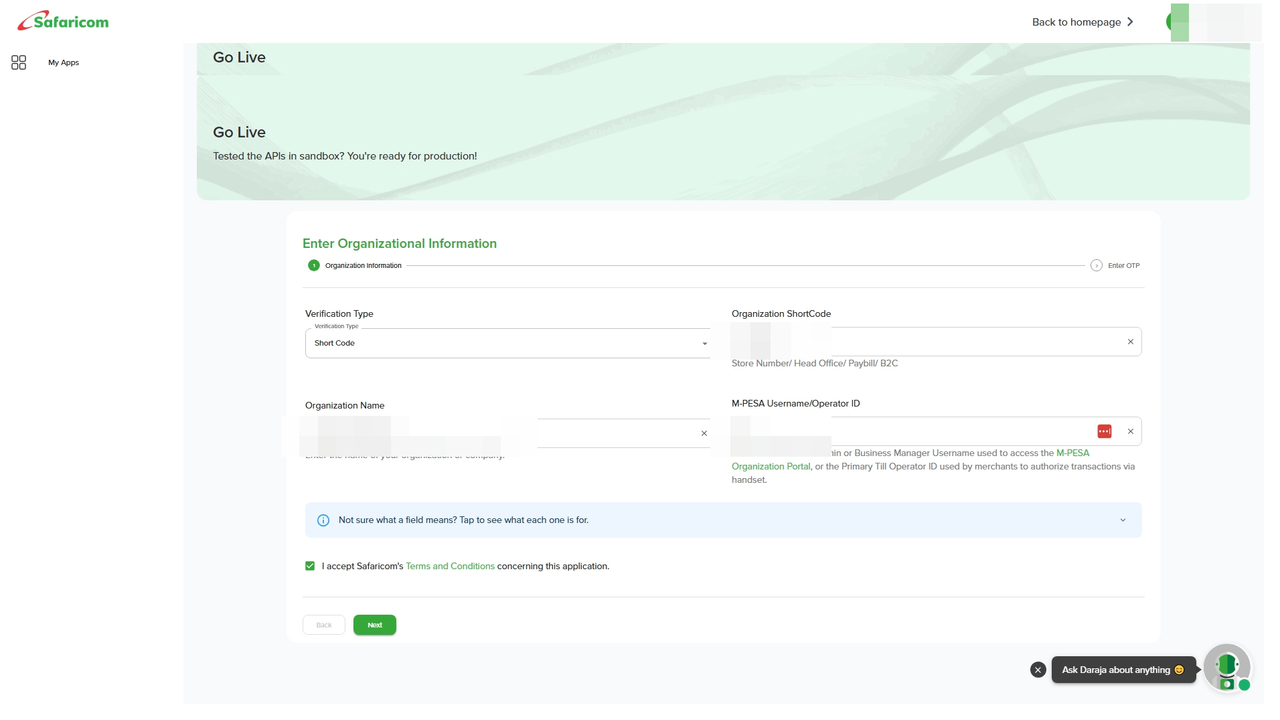
Daraja's own API pages document what each field wants — and where teams trip:
- Verification Type — Short Code, whether you hold a Paybill, a Till, a Head Office number or a B2C account.
- Organization short code — your live Paybill number, the Store Number for a Till, the Head Office number, or the B2C account short code. The test short code 174379 does not belong here.
- Organization name — shortened, symbols and special characters removed. Safaricom says this directly, and a name that does not match the M-PESA portal is the single most common reason a submission sits unresolved.
- M-PESA Username / Operator ID — the username of an operator holding the Business Administrator or Business Manager role on the M-PESA Org portal (org.ke.m-pesa.com). It is case sensitive on the form. If nobody at the company holds that role yet, the M-PESABusiness team creates administrators.
Then the OTP step. The one-time code goes to the phone number on the user profile in the M-PESA portal, and that line must be a Safaricom number to receive it — an Airtel line here means an OTP that never arrives. Check this before you submit, not after.
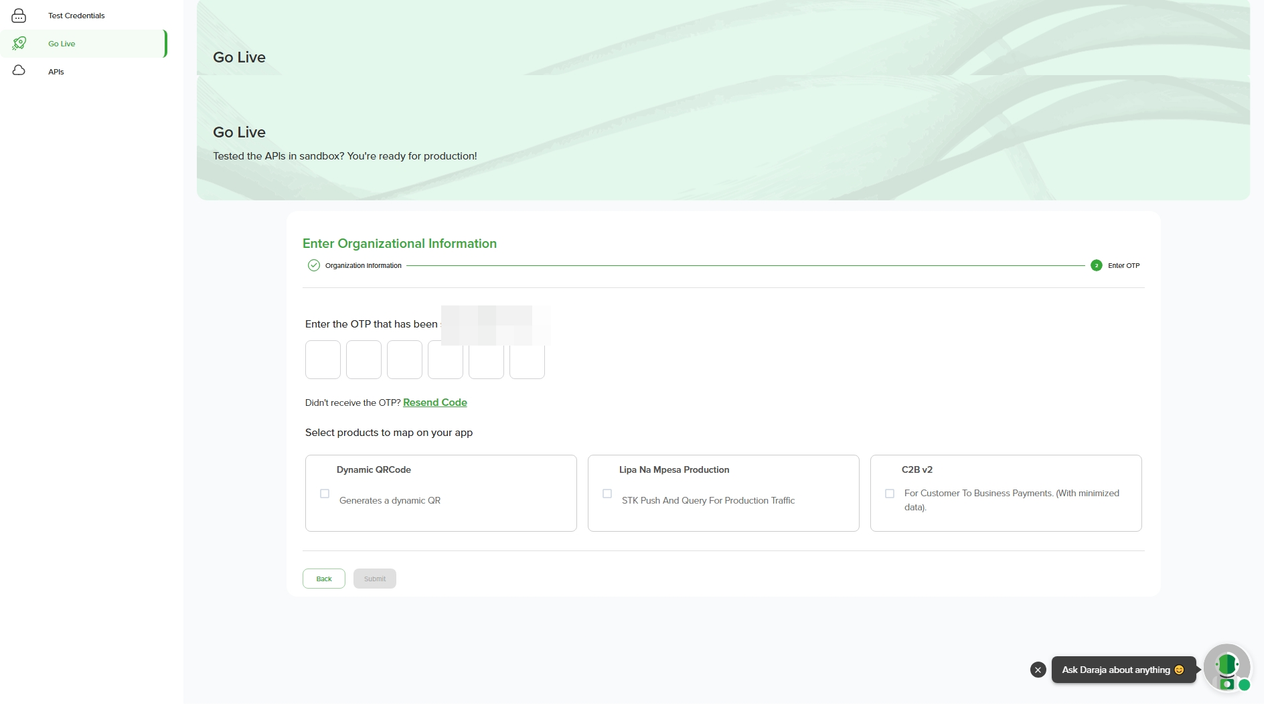
Tick the products to map onto your production app. What appears depends on your short code type: on this Buy Goods till the options were Dynamic QRCode, Lipa na M-Pesa Production (STK Push) and C2B v2 — while a B2C short code unlocks B2C and the disbursement APIs. Tick only what you will actually call; each product becomes its own approval, and the production endpoints you receive later are grouped per product.
Submit, and the portal confirms immediately:
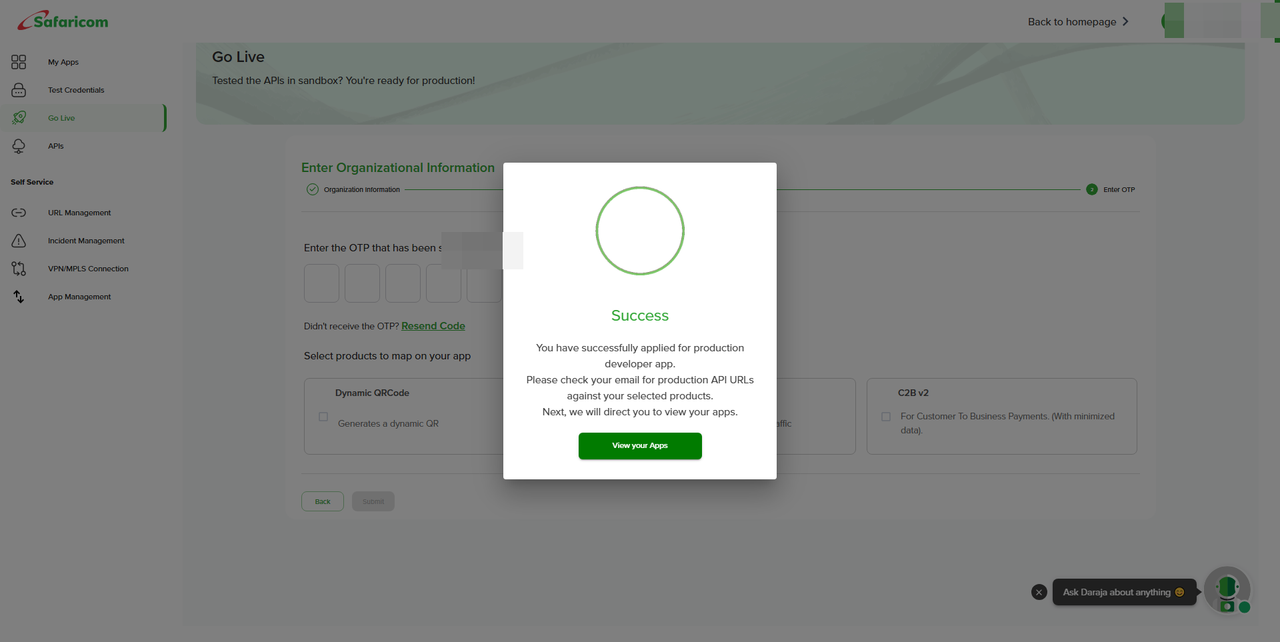
On this go-live, the whole sequence — form, OTP, products, submit — took about a minute, and the production app was timestamped within the same minute the confirmation appeared. A straightforward Buy Goods or Paybill go-live genuinely completes this fast. B2C-heavy and One Account setups take longer, so plan for anything from hours to a few business days, and do not refresh a status page — there isn't one. The app card and the emails simply arrive.
Step 4: Collect what Safaricom sends you
Two things happen the moment go-live completes: your sandbox app is converted into a production app, and Daraja emails your developer address. Where each credential lands:
| Credential | Where it lands | What it is for |
|---|---|---|
| Consumer Key + Consumer Secret | My Apps → your app card, now under Production Apps | OAuth access tokens |
| Lipa na M-Pesa Online Passkey | On the same app card, next to the key and secret | STK Push password |
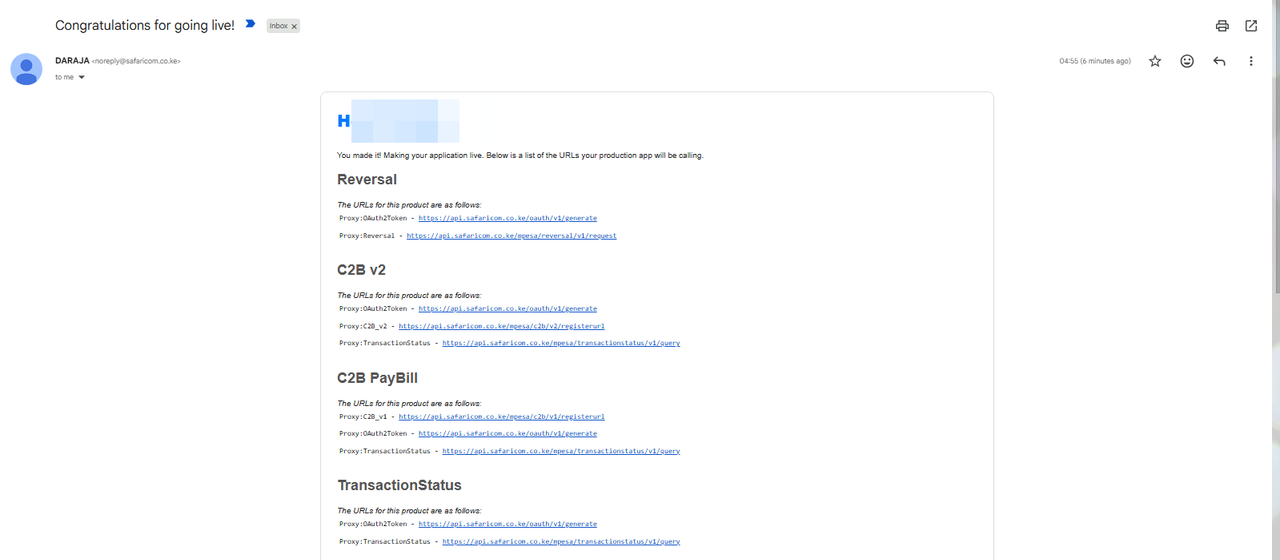
| Production endpoints | Email from Daraja, grouped per product | The live base URLs you are approved to call |
On My Apps, the tabs split into All Apps, Sandbox Apps, Production Apps and Revoked Apps. Your converted app appears under Production, named Prod- followed by your organization and a timestamp, with the short code and the approved products listed on the card:
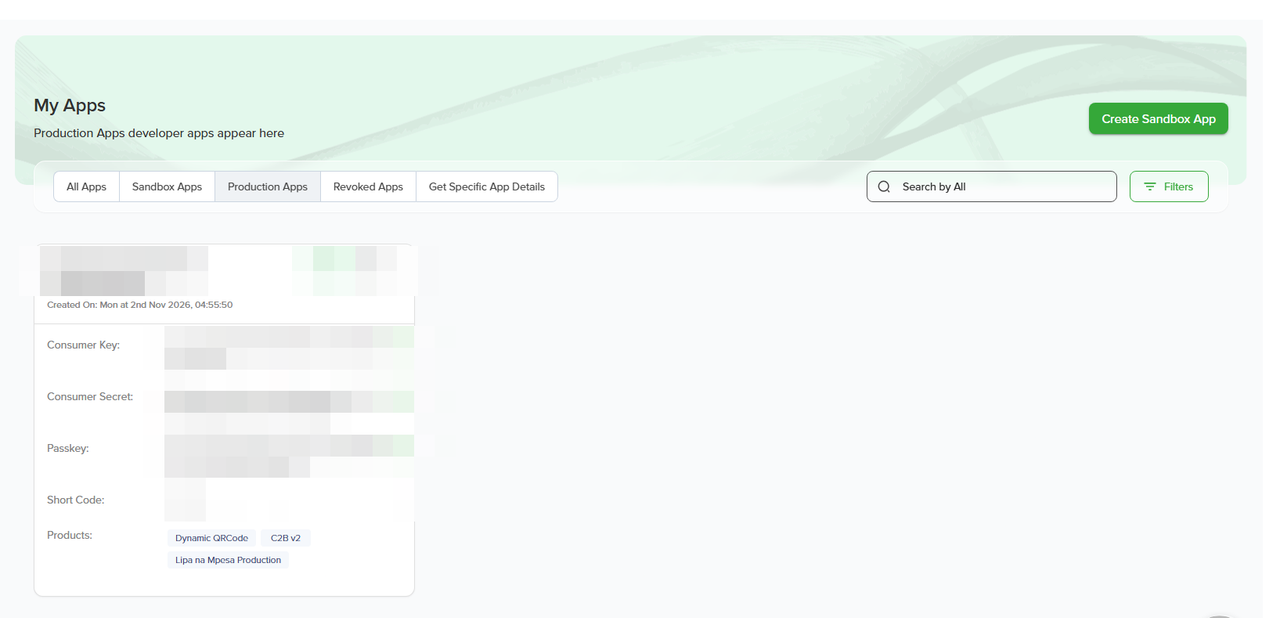
Older tutorials say the passkey arrives by email only. On current Daraja it sits right on the app card, one copy click away. If yours is missing from the card, or you lost a credential you never saved, Safaricom business support can resend or reissue it.
The email — sent from [email protected], subject "Congratulations for going live!" — is the other half: it maps each approved product to its production endpoints, including the shared OAuth token endpoint at https://api.safaricom.co.ke/oauth/v1/generate. File it somewhere permanent; it is the reference for every base URL you are allowed to call.
B2C users have one more step on the business side: API operator credentials created on the M-PESA portal, with the initiator password encrypted into a Security Credential using Safaricom's public certificate.
The full environment swap:
| Setting | Sandbox | Production |
|---|---|---|
| Base URL | https://sandbox.safaricom.co.ke | https://api.safaricom.co.ke |
| Consumer Key / Secret | Sandbox app | Converted production app |
| Passkey | Sandbox passkey | Passkey on the production app card |
| Short code | 174379 | Your live number (Store Number for a Till) |
| Security certificate | Not required for STK | Required for B2C and account balance |
Step 5: Swap the environment, guard the traps
One .env, one commit, one deploy:
MPESA_ENV=production
MPESA_BASE_URL=https://api.safaricom.co.ke
MPESA_CONSUMER_KEY=your_production_consumer_key
MPESA_CONSUMER_SECRET=your_production_consumer_secret
MPESA_PASSKEY=your_production_passkey
MPESA_SHORTCODE=your_live_shortcode
MPESA_CALLBACK_URL=https://yourdomain.com/api/mpesa/callback
Two production quirks belong in the same commit. Access tokens last about an hour, so cache each one for roughly fifty minutes instead of requesting a fresh token per transaction. And the Timestamp in an STK request is East Africa Time — a UTC clock produces "Invalid Timestamp" errors that look exactly like credential problems.

The guard code that refuses to boot a server carrying sandbox values into production, plus the replay-safe callback handler, are in the sandbox-to-production checklist. Wire both in before the first live transaction.
Step 6: The first live transaction
KES 1, every path, before you tell a single customer the system is live:
- Happy path — the push lands, the PIN is entered, the callback arrives, the order flips to paid exactly once.
- Cancel at the PIN prompt — expect
ResultCode 1032; the order stays unpaid and the customer sees a clear cancel message, not an error page. - Ignore the prompt — expect
ResultCode 1037; the order stays open and payable. - Replay a success callback — nothing pays out twice.
- Watch the logs for 24 hours and alert on any callback that does not return 200.
When it stalls: the support directory
- Daraja chatbot on the developer portal — handles both development and production support, and it is genuinely useful for form errors.
- [email protected] — the address Daraja's own pages give for go-live challenges and production incidents.
- [email protected] — short code applications, Org portal administrator creation, old statements, extensions.
- My Applications on the Business Hub — the status page for the business half, with the 24-hour official processing clock.
- The letter fallback — still working, community-documented: a signed request letter on company letterhead listing the company name and registration, the short code, the APIs requested, your callback URLs and contacts, emailed to [email protected]. Use it when a B2C approval needs a nudge or the portal flow refuses to complete.
Before writing to any of them, recheck the three classics: the organization name matching the M-PESA portal exactly, the right number in the short code field (Store Number, not Till number, for a Till), and a Safaricom line behind the OTP.
The official link shelf
Portals and support:
| Resource | Link |
|---|---|
| Daraja Developer Portal | developer.safaricom.co.ke |
| M-PESA Business Hub | hub.m-pesaforbusiness.co.ke |
| Business Hub application portal (Till, Paybill, B2C, One Account) | m-pesaforbusiness.co.ke/LNM |
| M-PESA Org portal | org.ke.m-pesa.com |
| API support | [email protected] |
| Business support | [email protected] |
Official forms and documents:
| Document | Link |
|---|---|
| Bulk Payment (B2C / One Account) application form, 2025 | |
| One Account application, tariff and authorization forms | safaricom.co.ke |
| Lipa na M-PESA Terms and Conditions, 2026 | |
| Paybill standard tariff | |
| M-PESA Paybill guide |
From here
Going live is a sequence, not a switch: short code first, Go Live form second, email inbox third, first shilling last. Once money flows, the job becomes monitoring, idempotency and reconciliation — the same discipline the sandbox-to-production checklist covers in depth.
If you would rather not manage keys, OTPs and passkeys at all, aggregators wrap the same M-Pesa rails behind one API — the FortPesa Node.js walkthrough shows the whole checkout flow with fewer moving parts, and LipaWoo does it for WooCommerce stores without code. Building the client side in React? Start with the React STK Push guide. For the wider picture of taking payments in Kenya, the small business payments guide has you covered.
Want a second pair of eyes on your Go Live submission before you press it? Talk to our team — we have walked enough of these through to know where they stick.